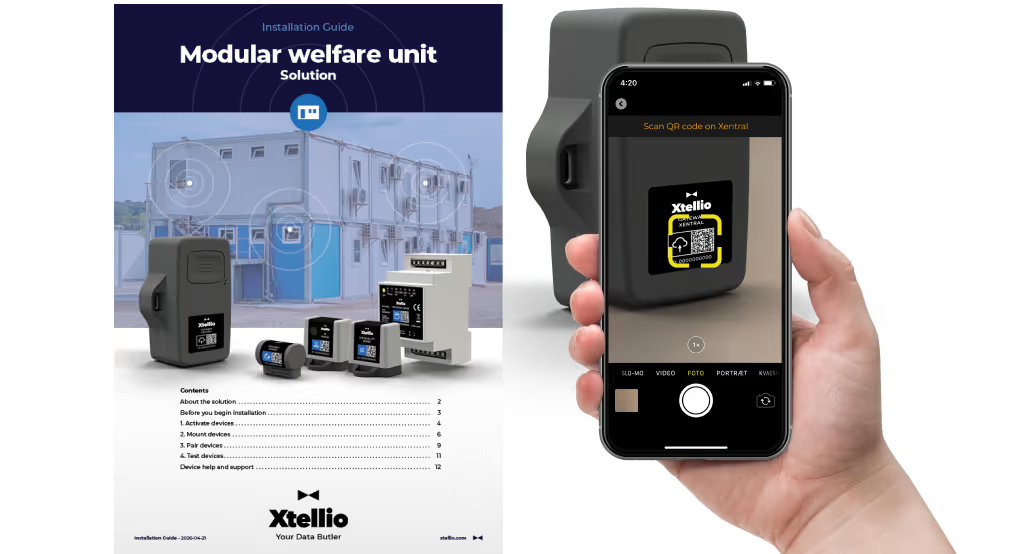
Get started with setup, installation, and product information
1. Set up devices
Download mobile app
Xtellio Picco is your mobile companion for easy device setup and pairing. Use links via the badges below. Log in using your Xtellio user credentials, created by your system administrator and sent to you in your welcome email.
Find installation guide
If you use your phone’s camera to scan the QR code on the device label, it links directly to all downloads for that specific device. You can also find your device in this list.
2. Manage devices and view data
Log in to web app
The Xtellio Butler web app helps you configure and manage your devices and users. Find Xtellio Butler by clicking the lock symbol in the upper right corner of xtellio.com. Log in using your Xtellio user ID, which is created by your system administrator and sent to you in your welcome email.
3. Integrate data
Find access token and APIs
If you want to integrate Xtellio data into your own dashboards and tools, such as Power BI, you can browse Xtellio’s API documentation here. A personal server access token can be created in your user profile in the Xtellio Butler Web App.